
Create, manage, import and export recipients easily.
Managing the Address books
-
Managing address book and masked addresses
It’s important to notice you have two address books at your disposal:
- Your regular address book for your receivers
- Your masked address book
The masked address book contains all addresses that you can use to mask the sender address on the label. This is explained more in detail in the creating your shipments section in chapter 4. Both address books can be accessed in the main menu:
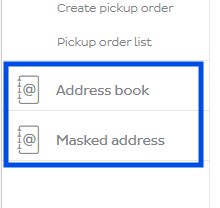
If we click, for example, the Address book, you will see the list of your receivers. You can easily search for one using the search function or using one of the filters.
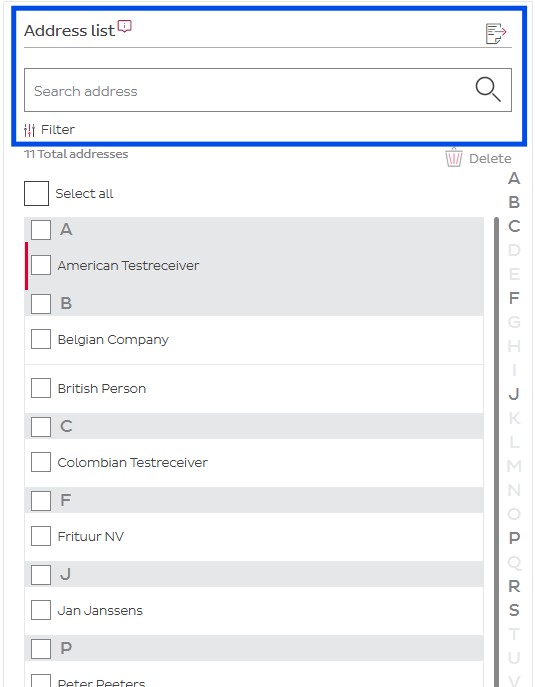
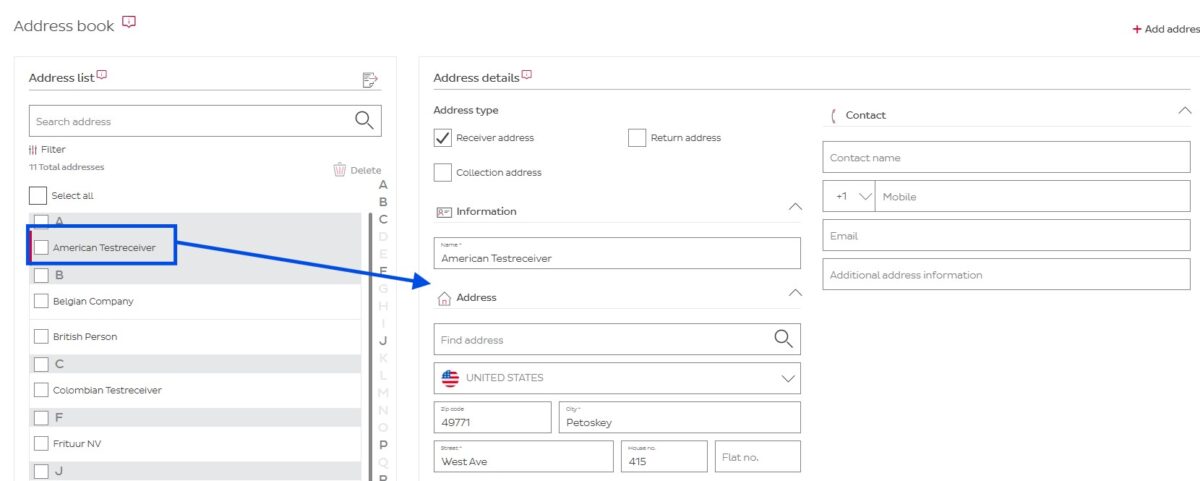
If you want to delete an address, select the address by checking the box and click the delete button. To change an existing address, simply click on the address and you’ll be able to change the details in the right part of the screen:
For the Masked addresses book is the same idea. But please be mindful that the addresses you put in the Masked addresses cannot be used as actual sender addresses. Masked addresses only provide a visual change on the label and don’t constitute a correct return address. Even if you set a different Masked address, the parcel will still be returned to you as a sender.
-
Adding an address in the address books
To add an address to your address book, click in the top right corner on + Add address
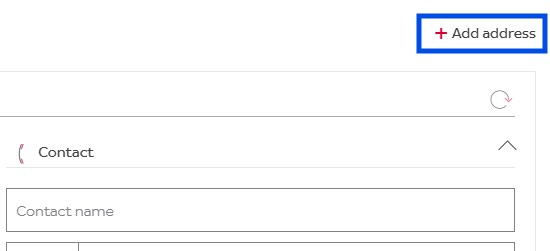
First, select the address type. An address can be stored as more than one type. An address can for example be both a Collection address and a Receiver address. The types of addresses are:
- Receiver address: this is an address that you can make regular shipments to
- Collection address: this is an address that you can use to make collection requests to
- Return address: this is an address that you can store as a place where your receiver can eventually send parcels back to in case of a return
Then, fill in the rest of the required fields. Keep in mind the following max. amount of characters:
Name 35 Contact name 35 Street 35 Additional address info 35 House no 8 ZIP-code 8 City 35 Mobile Phone 25 Email 50 You can use the Find address function that will attempt to find the address you’re looking for. In this example, we’re looking for the Konkelstraat 5 in Sint-Pieters-Woluwe:
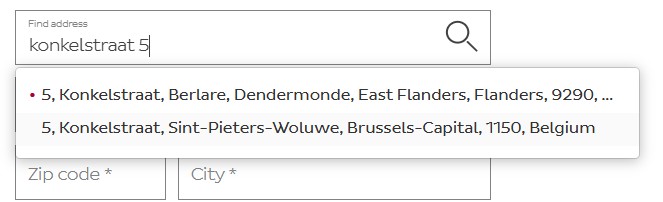
You can of course also not use the Find address function and type in the address manually yourself in the appropriate fields.
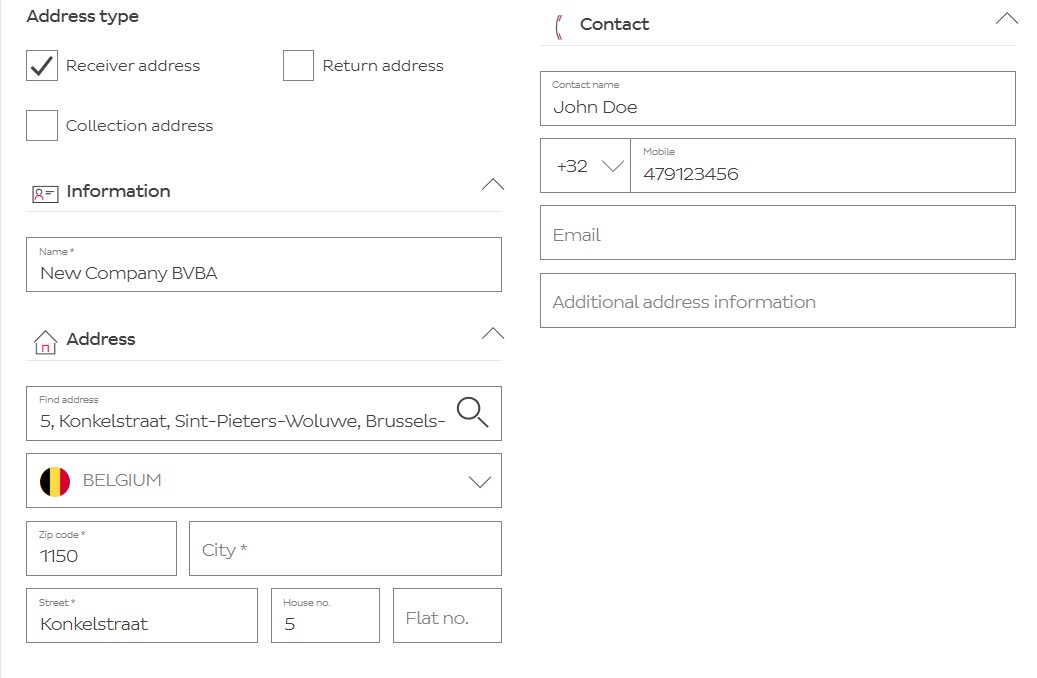
When you’re done, click on the Add button in the bottom left corner.
The Masked address book works the exact same way, but is only used for masked address, like the name says.
-
Importing addresses from an external file
This chapter will be completed later.