
Generate an address book or shipments directly from an external source such as an Excel file.
Importing recipient and shipments
-
The basics
There are two types of import: you can import addresses in your address book for later use or you can import shipments directly into the system, where each record generates a shipment. Please keep in mind the following general guidelines
- You can import from a xls, xlsx or csv file.
- The order of the columns doesn’t matter.
- Fields must be separated with pipe (|) or semicolon (;)
- Encoding must be UTF-8, Windows 1252 or Windows 1250
- Header line is strongly recommended.
- Country and language codes must be in ISO Alpha-2 format
- Zipcodes must be in the correct format. No prefixes or suffixes.
- Field lengths cannot be exceeded
For address book imports, the following fields are mandatory:
- Name
- Street (can also include the house number)
- House number (is only mandatory of not included with the street)
- Zipcode
- Country code
- Email address (optional, but necessary if you plan to use this address for B2C shipments)
- Phone (optional, but necessary if you plan to use this address for B2C shipments and didn’t include the email address)
For shipments imports, it’s similar to the address book. The following fields are mandatory:
- Name
- Street (can also include the house number)
- House number (is only mandatory of not included with the street)
- Zipcode
- Country code
- Email address (optional, but necessary if you plan to use this address for B2C shipments)
- Phone (optional, but necessary if you plan to use this address for B2C shipments and didn’t include the email address)
- Parcel weight (in kilograms)
- Parcel dimensions (width, height, length in centimeters)
- Parcel count (how many parcels there are in this shipment)
- Service code
When importing shipments, some of the values can be made fixed by the system. It will then be applied to all shipments you import. You can also use the replace function: this allows you to take a certain value of your Excel and replace it by another when importing. It’s explained in details in point 4 below.
Certain other fields are recommended, but not mandatory. Examples are references, etc.Example file:

-
Create import pattern for my address book
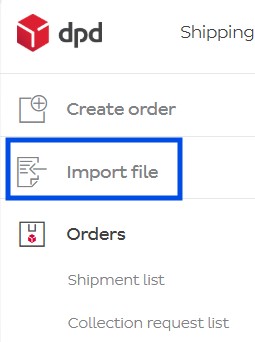
You can find an example of such a file here: Addressbook_import_example. For this guide, we will use this file. First we have to “tell” the system how to understand and import your file. We do this by creating a pattern for your file. This will tell the sytem which column corresponds to which field in the address book. For that, click in the left menu on Import file
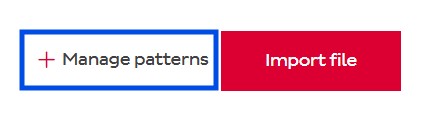
Next click on Manage patterns to the right and then Add pattern
In the pattern creation screen, you can fill in some fields:
- Name: the name you want to give your pattern. What you fill in doesn’t really matter, it’s so you can easily recognize it later. We will name ours My First Addressbook
- Import type: set this to Address book
- File type: the type of your file. In our example, it’s an Excel.
- If your Excel/CSV file has a header, check the box. In our example, it does

Next, click on the browse button and naviage to your Excel file. The system will load your file and propose to map some of the fields automatically. If you’re not satisfied with some of the proposals, you can un-map these fields by clicking on the X-button when hovering over a field:

We usually advise to remove all proposed mappings and do it yourself entirely, to be sure it’s the way you like.
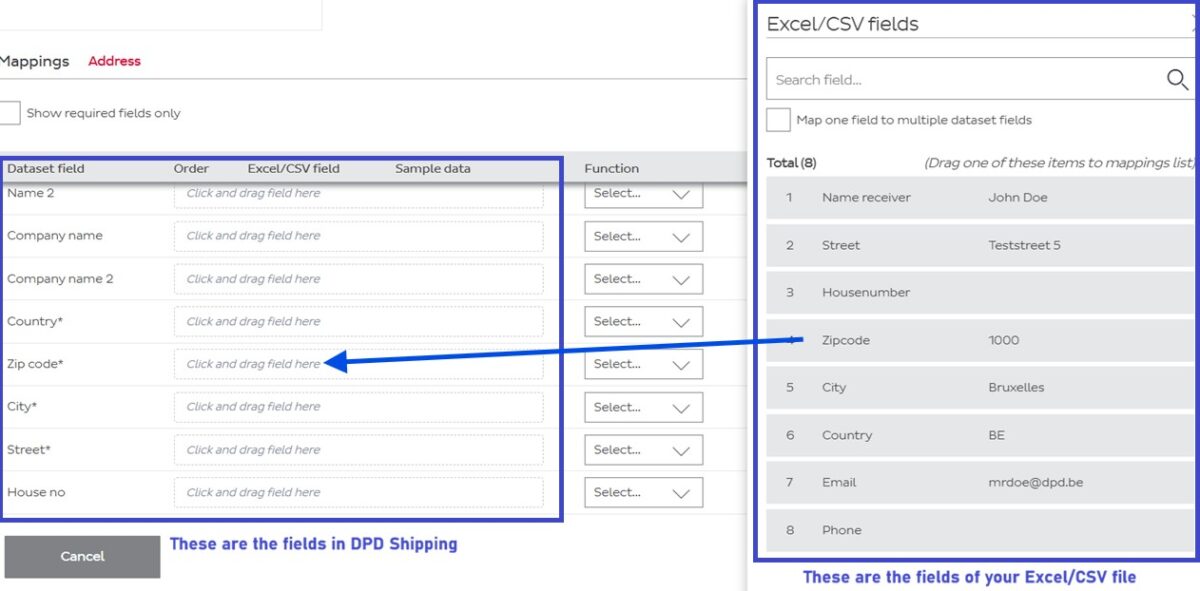
You can now click the Start mapping button to the right to start linking the fields from your file to the corresponding field in DPD Shipping. You can drag the fields from your file (the right part of the screen) into the correct fields (in the left part fo the screen). In the screenshot below for instance, we drag the zipcode column from our Excel into the Zip code field of the system:
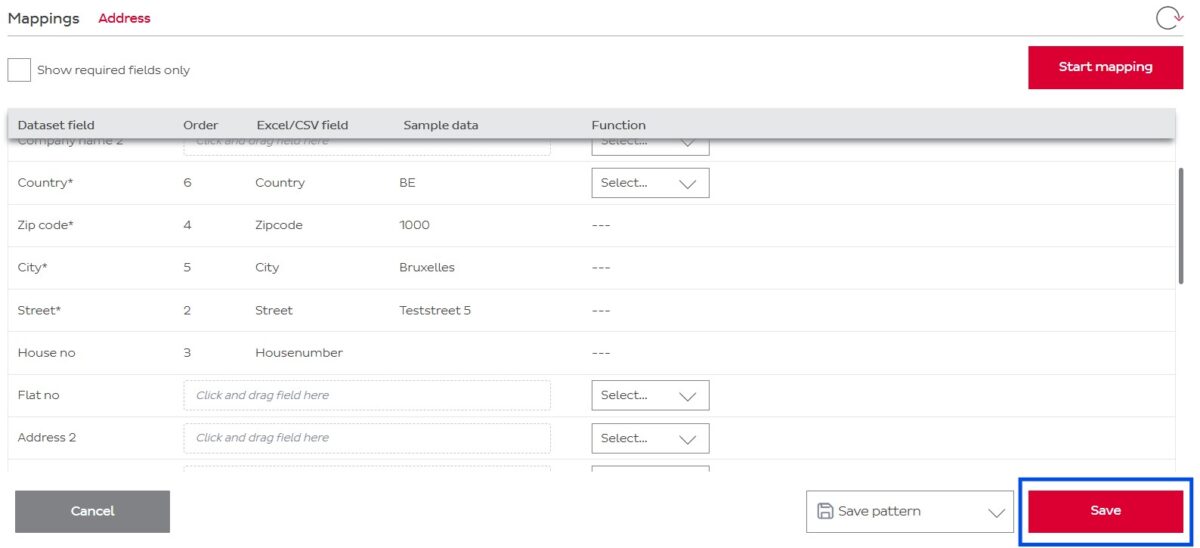
Once you have mapped all your fields, you can save the pattern by clicking the save button at the bottom.
-
Create import pattern for shipments
Just like with your address book, you can also import shipments directly into your DPD Shipping tool. It’s very similar to importing an address book, but it has a few extra points you have to keep in mind:
- Shipments need a weight and dimensions
- Shipments need a Service Code
- Shipments can have multiple parcels
- Each line in the excel will generate one shipment. A shipment can be monocolli or multicolli.
For this too, you can find an example file here: . We will again use this sample file for our guide.
First we have to “tell” the system how to understand and import your file. We do this by creating a pattern for your file. This will tell the sytem which column corresponds to which field in the address book. For that, click in the left menu on Import file
Next click on Manage patterns to the right and then Add pattern
In the pattern creation screen, you can fill in some fields:
- Name: the name you want to give your pattern. What you fill in doesn’t really matter, it’s so you can easily recognize it later. We will name ours My Import pattern
- Import type: set this to Shipment
- File type: the type of your file. In our example, it’s an Excel.
- If your Excel/CSV file has a header, check the box. In our example, it does

Next, click on the browse button and naviage to your Excel file. The system will load your file and propose to map some of the fields automatically. If you’re not satisfied with some of the proposals, you can un-map these fields by clicking on the X-button when hovering over a field:
We usually advise to remove all proposed mappings and do it yourself entirely, to be sure it’s the way you like.
You can now click the Start mapping button to the right to start linking the fields from your file to the corresponding field in DPD Shipping. You will notice that there are three tabs you can configure: one for the address, one for the service and one for the parcel details:
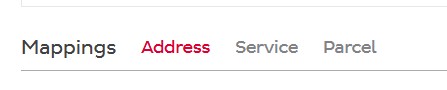
Let’s start with the Address. You can drag the fields from your file (the right part of the screen) into the correct fields (in the left part fo the screen). In the screenshot below for instance, we drag the zipcode column from our Excel into the Zip code field of the system.
When you’re done, move on to the next tab: Service. You only have to map one field here, being the Service Code.

And finally, we can map the parcel details now in the Parcel tab. Which field needs to go where is pretty straightforward.
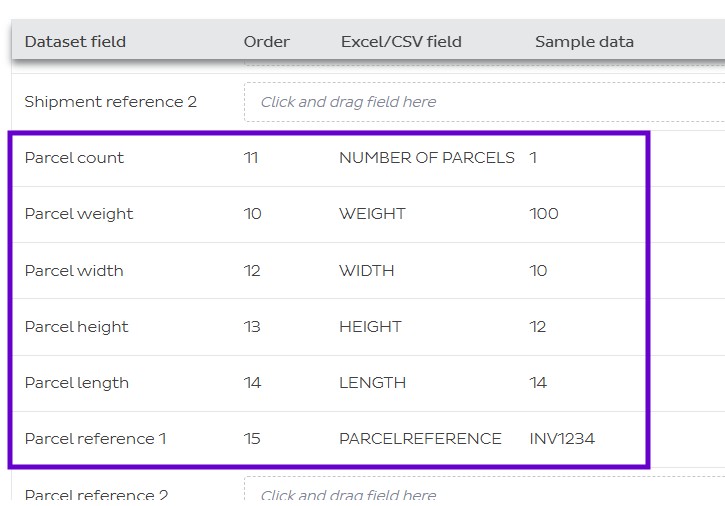
Once you have mapped all your fields, you can save the pattern by clicking the save button at the bottom.
-
Replacing values or setting fixed values
As we alluded to earlier, you can manipulate the fields in your import file. You can set certain fields to be fixed values or you can replace a value from your Excel to be imported as a different value.
A few examples where this can be useful:
- A field you want to include is missing in your Excel, but you want to use the same value for that field every time anyway
- Your Excel file contains the countries ISO A-3 format (BEL, FRA, NLD, LUX,…) instead of the ISO A-2 format (BE, FR, NL, LU,…)
- You’re still using the old service codes from our previous system like B2B, B2C, PSD,… instead of the new codes (25,26,…)
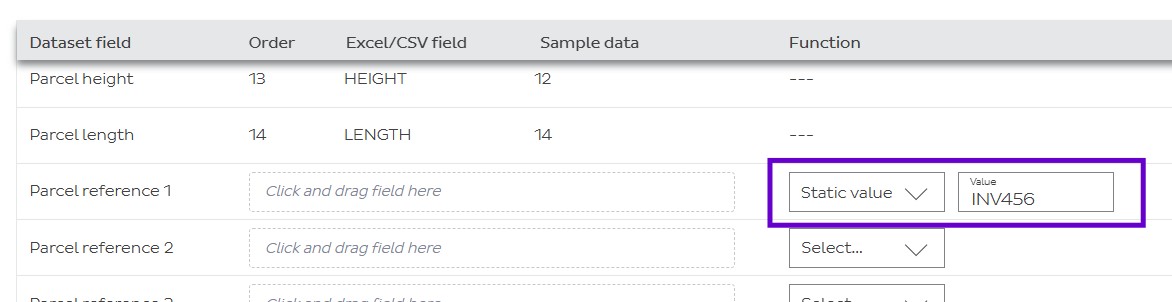
If you want to set a certain field to a fixed value, you can do so under the Function column when mapping. Set it to Static. In the field that appears, you can set your fixed value. In our example below, we’re setting Parcel Reference 1 to static value INV456 because all our shipments we ever make always have that as a Parcel Reference.
If you want to replace a certain value, you can select Replace in the function column. This option will only be available if you have mapped it. Then you can click
 which will open a new window. In this window, you can set your original value in the Input field and fill in what value it should be replaced with in Replace value. Click Add to add the rule.
In our example, we will make it so that the system changes the A-3 ISO format into the A-2 variants (the system will turn BEL from your file into BE in the system, FRA into FR, etc).
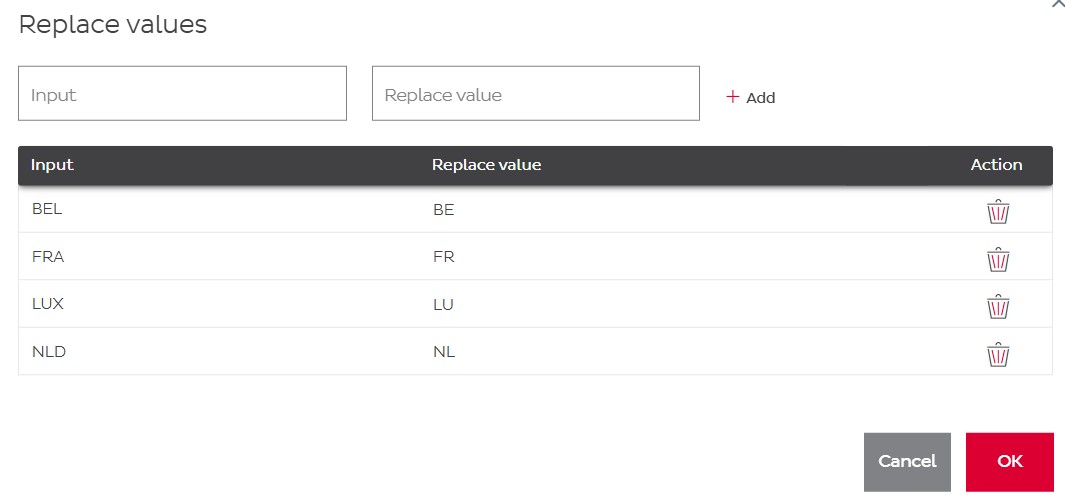
Once you’ve added all your rules, click OK.
-
Automatic import
The system allows a fully automated import experience. This means that the system will check a specified folder at a determined time interval, automatically detect when it finds something and import it to generate shipments.
THI PAGE IS UNDER CONSTRUCTION.