
Add users, delete users or manage user access to the DPD Shipping tool
Managing users
Add users, delete users or manage user access to the DPD Shipping tool
-
Delete or edit an existing user
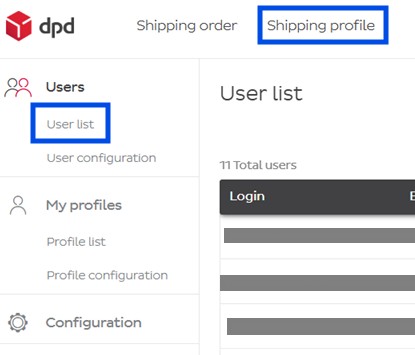
To access the user management screen, click on Shipping profile then on User list
You can a user by clicking the Trash bin icon
 , or you can edit the user by clicking on the Pencil icon
-
Add a new user
You can add extra users to DPD Shipping as well. This is ideal if you want more than one person to be able to make shipments. All the user needs, is a valid email address.
We strongly recommend you give each person their own user instead of having only one user and sharing it amongst several people.To add a user, follow these steps:
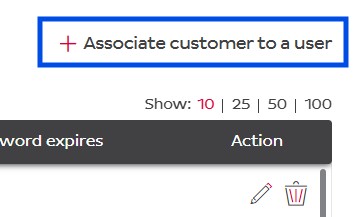
- Click on Associate customer to a user in the top right corner:
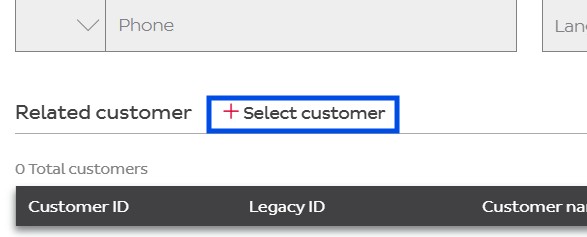
- Next, click on Select customer
- Select the accounts this user should have access to by checking the box. If you only have one account, the select that one. In our example, our company is named BE Test Customer.

You also have to indicate what role this user will have for that account. Roles are explained further in details in point 3 below.

Then click the Save button - Now fill in the Email first. Make sure this is a valid email address. The other fields will become available and you can fill those in too. The login can only contain alphanumeric characters.

- When you’re finished, click the Save button in the bottom right.
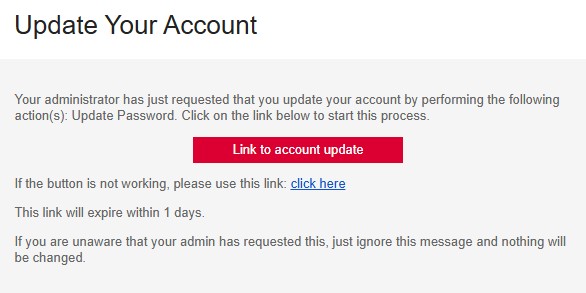
The user will now receive an email from noreply.sso@dpdgroup.com with an activation link. The user will have to click the button within 1 day which will prompt the user to set up a password.
- Click on Associate customer to a user in the top right corner:
-
Roles for your users
You will see that, when adding a role for a user, you have the choice between these options. Choose whichever you find appropriate for that user to have on that account.
- Administrator: Can do everything. Can make/print/delete/import shipments, configure Shipping, add/delete/edit users, create/delete/change your import profiles, consult and change your address book, etc. We strongly recommend you only give this role to a select few people.
- SuperUser: Can do everything, except add/delete/edit users
- User: Can do everything, except add/delete/edit users nor create/delete/change your import profiles
- Viewer: Can print and view shipments and can consult the address book, but can’t make/edit shipments nor can they change the address book.